
Customers regularly ask whether they can put Anthropic's Claude models behind their WhatsApp Business number. You can, and it only takes a few steps. Connect WhatsApp Business to Social Intents, route the number to a chat widget, then select Claude in that widget's AI Agent settings. Social Intents handles the connection to Meta's Cloud API, so there is no webhook server to build and no MCP configuration involved.
Once Claude is answering, train it on your business data including your website, help docs, and spreadsheets. You can also add AI actions that securely reach into your CRM, ordering, or ticketing systems to pull shipping information, add leads, or create tickets.
What This Integration Does
This guide covers a business support assistant powered by Claude. Customers message your business number in WhatsApp, and your team manages the conversation in the Social Intents Inbox or a connected team platform. It does not connect your personal WhatsApp history to the Claude desktop app.
The chat widget is the configuration that brings together your AI agent, your knowledge, and your routing. For this workflow WhatsApp is the customer's entry point, so you still configure a widget even though you are not adding website chat.
Before You Start
- A Social Intents account and a chat widget for the team you want to connect. See Set Up Your First Chat Widget.
- Access to the Meta Business account and WhatsApp Business Account you intend to authorize.
- A business phone number you can verify through Meta's setup flow.
- Current FAQs, product documentation, and policies for the assistant to learn from.
- A destination for human replies: the Social Intents web Inbox or a connected team platform.
- An Anthropic API key. Claude is a bring your own key provider and has no included models, so this step is required. See Choosing Your AI Engine.
Connecting WhatsApp to Claude
Create or Select Your Chat Widget
Open Chat Widgets and select an existing widget, or create one for this WhatsApp workflow. Give it a descriptive name such as Customer Support so it is easy to identify when you assign the WhatsApp number.
If you already use a widget for website support, decide whether its business content, instructions, and team destination also fit WhatsApp. A dedicated widget is useful when the WhatsApp audience needs different answers or a different support team.
You can answer from the web Inbox without connecting Teams, Slack, or Google Chat. If your team works in one of those platforms, configure the widget's team destination before you test handoff.
Connect Your WhatsApp Business Number
Go to Settings > Integrations and click Connect WhatsApp. Complete Meta's embedded signup using the account that manages your business. Select or create the WhatsApp Business Account, choose your number, and finish the verification and authorization Meta requests.
Social Intents registers the number with the Cloud API and subscribes to webhook events for you. There is no API endpoint to build and no Meta access token to copy into a server. Full detail is in Setting Up WhatsApp Business.

Route WhatsApp Messages to Your Widget
Return to Settings > Channels, find your connected WhatsApp number, and use Route WhatsApp chats to to select the widget you prepared. Save your changes.
This assignment is the link between the phone number and the AI configuration. If WhatsApp points at one widget and Claude is enabled on another, your test will not use the assistant you configured. Running more than one number? See Multiple WhatsApp Numbers.

Enable Claude in the AI Agent Tab
Open Chat Widgets > your widget > AI Agent. Enable the AI agent, choose Claude as the provider, and select an available model. Set a customer-facing bot name such as Acme Support Assistant, add an appropriate AI disclosure, and save.
Your opening message can explain that customers are speaking with an AI assistant and can ask for a person at any time.

Do You Need an Anthropic API Key?
It depends on the model. Included Claude models draw from your plan's AI response allowance and need no key. If the model you select is marked as requiring your own key, enter your Anthropic API key in the provider configuration on the same AI Agent tab and usage bills to your Anthropic account instead. The model selector in your account is the source of truth. See Choosing Your AI Engine for the comparison.
Avoid choosing a model by its name alone. Test it against the questions your customers actually ask, then compare answer accuracy, response time, and usage.
Train Claude on Your Business Content
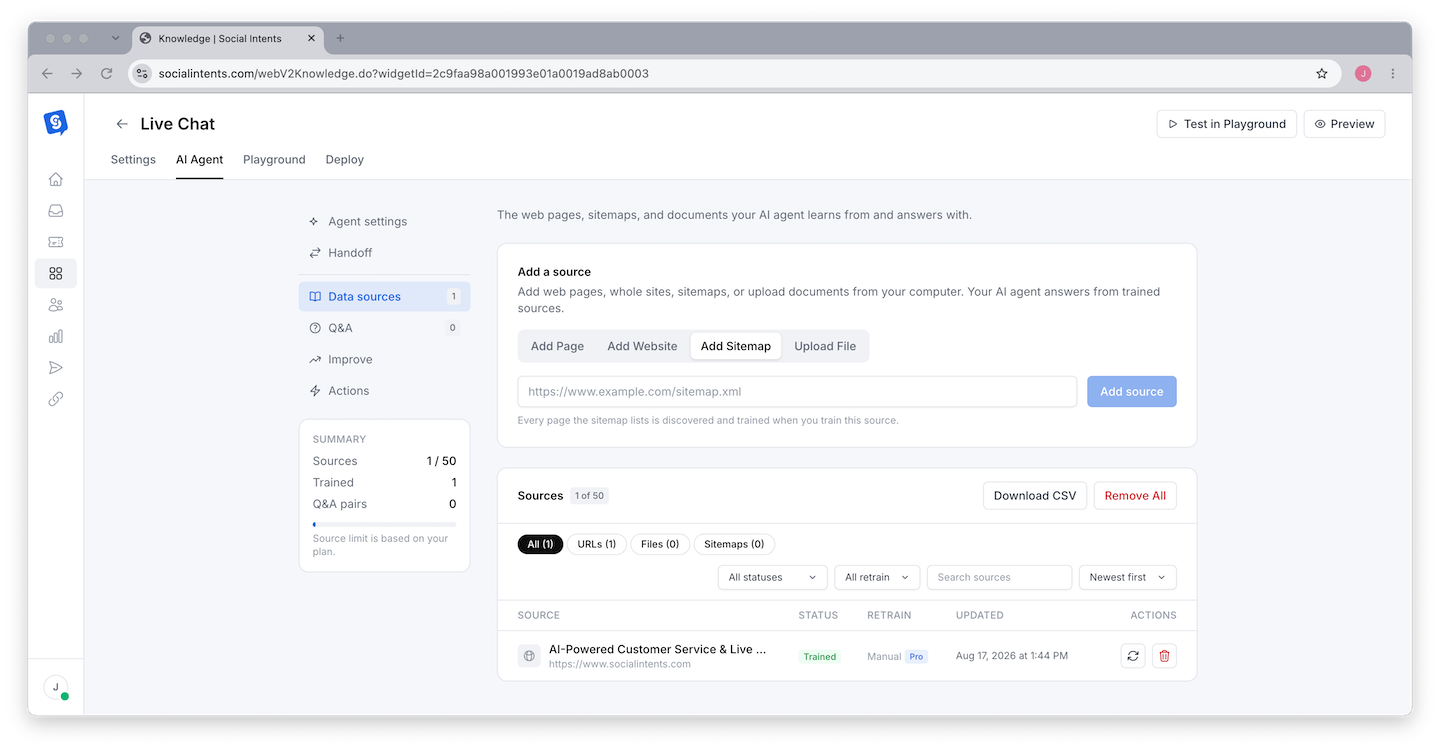
From the widget's AI Agent area, open Knowledge and add the sources customers will need: a website section, individual help pages, an XML sitemap, or supported files such as PDF, Word, and text documents.
Start with a focused set of current material. A useful first training set covers account setup, product capabilities, pricing explanations, support hours, and cancellation or return policies. Remove outdated or contradictory pages before you test.
Click Train All and wait for processing to finish, then review each source status. Add curated question and answer entries where the wording has to be precise. See Training Your Chatbot on Your Content.
Write Instructions for WhatsApp Replies
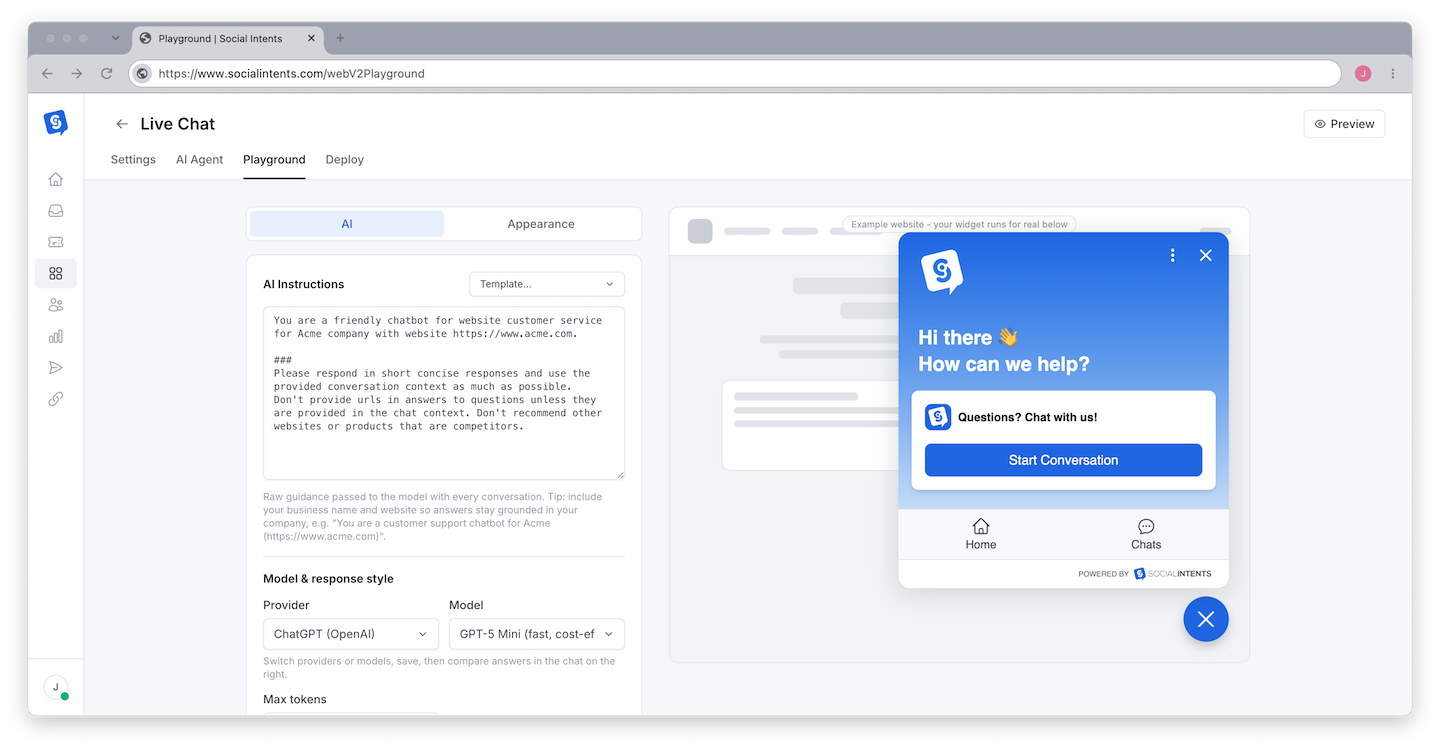
Open the widget's Playground to edit instructions and test responses. Keep replies readable on a phone, define the assistant's business scope, and explain when a person should take over. Adapt this starting prompt to your business:
You help customers of {Company} with {products or services}. Base factual answers on the supplied business content. Keep each reply brief enough to read comfortably on a phone. Ask a single clarifying question when the request is ambiguous. If the content does not establish an answer, explain the uncertainty and offer human help. Do not invent account details, refund decisions, availability, or completed transactions. Respect requests to speak with a person. For account-specific issues, use only configured and authorized workflows or refer the customer to our team. Stay focused on our business.
These instructions are a starting point to test, not a guarantee of correct answers. Try ambiguous questions and unsupported requests as well as straightforward FAQs. See Writing Effective System Instructions.
Configure Human Handoff
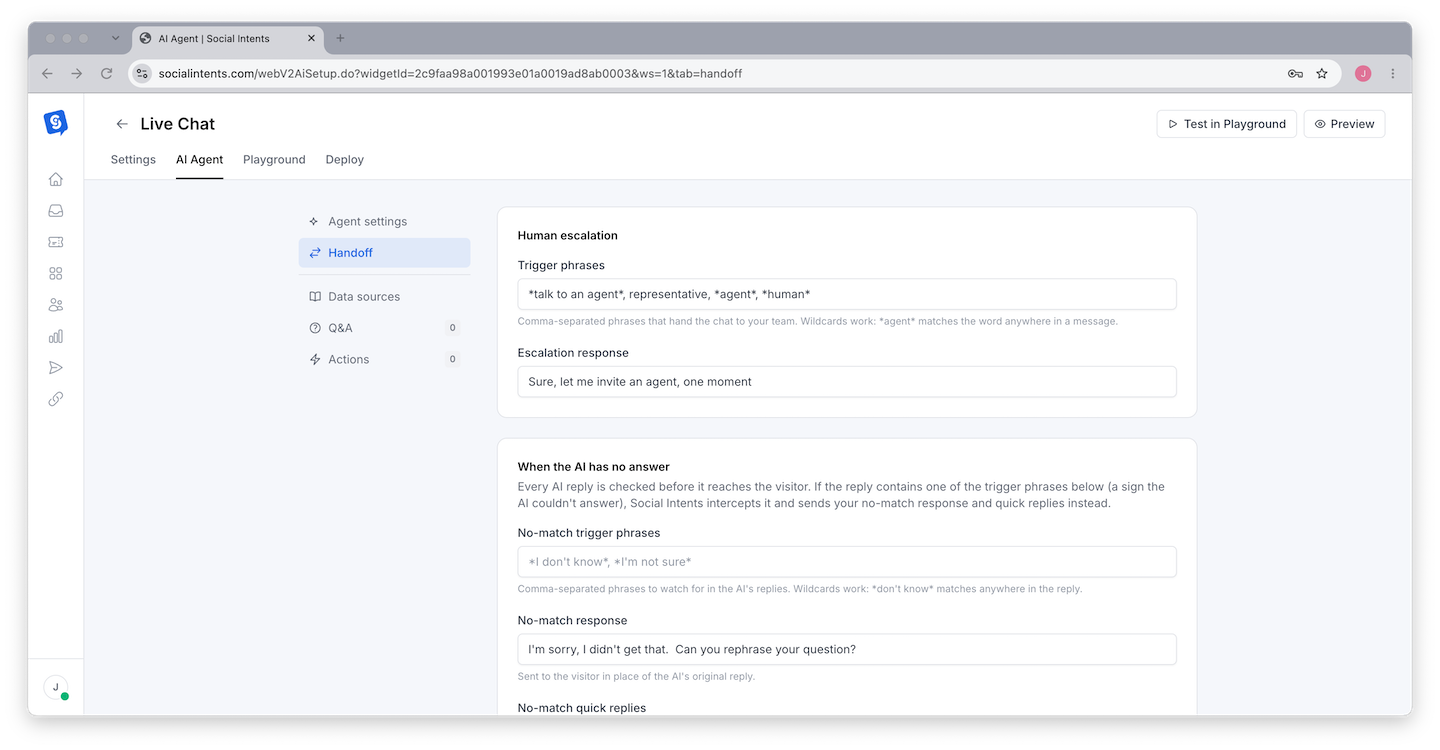
Open Chat Widgets > your widget > AI Agent > Handoff. Enable escalation for customers who ask for a human, and use your instructions to cover cases such as an unresolved answer or a billing dispute.
Write a handoff message that matches your support hours, for example: "I will pass this conversation to our support team. If we are outside support hours, we will reply when we return." Avoid promising an immediate reply unless your team can deliver it.
Check the conversation in the Inbox and in your connected team channel. An agent should be able to read the previous messages and reply to the customer in WhatsApp. See Setting Up Escalation to Human Agents.
Where agents answer depends on how the widget is connected: Microsoft Teams, Slack, Google Chat, or the web Inbox. Test after-hours behavior separately. The website offline form does not appear inside WhatsApp.
Test the Complete WhatsApp Conversation
Use a separate WhatsApp account to message your connected business number. Playground testing helps you tune Claude, but only a real WhatsApp conversation checks the number, the routing, the AI response, and the human reply together.
| Test | What to check |
|---|---|
| Known answer | Ask a question covered by a trained support page and compare the reply against the source. |
| Follow-up | Ask a related question without repeating the original subject and confirm the answer fits the conversation. |
| Missing information | Ask about a feature or policy absent from your content and confirm the bot does not invent one. |
| Human request | Ask to speak with support, have an agent reply, and confirm the response arrives in WhatsApp. |
| After hours | Test with your team unavailable and review what the customer is told about wait times. |
| Coexistence | If enabled, check the phone app and the Inbox transcript, and agree on who responds. |
If a test fails, fix that part and repeat it before you publish the number to customers.
WhatsApp Session Rules and Costs
WhatsApp allows free-form replies within 24 hours of the customer's most recent message, and every new customer message resets that window. After it expires you need an approved template to re-engage. Sending a template alone does not reopen the window for unrestricted replies.
In Settings > Channels, select a retry template and map its variables so agent replies do not fail silently after the window closes. Test the template before you rely on it. Closing or reopening a conversation in Social Intents does not reset Meta's messaging window, so treat auto-close as conversation management rather than permission to send another free-form message. See WhatsApp Templates, Media & Sessions.
Budget for three things: your Social Intents plan, your Anthropic usage, billed by Anthropic against your own API key, and Meta messaging charges. Meta prices the WhatsApp Business Platform per delivered message with category and market differences, and service replies inside the customer service window are free of Meta messaging charges. Check current rates rather than assuming every WhatsApp message is billable. See Plans, Billing & Upgrades.
Troubleshooting
Messages never reach Social Intents
Confirm the customer is messaging the connected number, then check the number's connection status and assigned widget in Settings > Channels. Verify that Meta authorization completed. If the connection is incomplete, return to setup and resolve the issue shown.
Messages arrive but Claude does not answer
Open the widget assigned to that number and confirm the AI agent is enabled, Claude is selected, the model configuration is complete, and training finished. Compare a Playground test with a new WhatsApp conversation to narrow down whether the problem is AI configuration or channel routing.
Answers are outdated or inaccurate
Review the relevant Knowledge source, remove contradictory information, and retrain. Add a precise question and answer pair where the wording matters. Repeat the question in a fresh test and verify against the source rather than judging the reply by how confident it sounds. See Improving Response Quality.
A delayed human reply fails
Check whether the customer's 24-hour window expired and whether an approved retry template is configured. If the agent received the conversation but the customer received nothing, inspect the message status and the template settings.
Frequently Asked Questions
Can I connect WhatsApp to Claude without coding?
Yes. Social Intents provides the WhatsApp connection and the Claude configuration through the dashboard. This workflow does not require an MCP server, a custom webhook application, or a separate automation builder.
Is this a Claude Desktop WhatsApp connector?
No. This setup puts a Claude-powered business assistant behind your WhatsApp Business number. It does not import your personal WhatsApp conversations into Claude Desktop and it does not configure Claude Code.
Can my team reply from Microsoft Teams or Slack?
Yes. Route the WhatsApp number to a widget connected to the team destination you want. Your staff can handle the conversation there, or work from the Social Intents web Inbox.
Can I keep the WhatsApp Business App on my phone?
Use coexistence mode when it is available for your setup. Verify both interfaces after connecting and agree on who answers, so customers do not get duplicate replies.
Will Claude automatically understand voice messages and attachments?
Do not assume it will. Incoming media appears in conversation transcripts, but receiving a file is not the same as having the model interpret it. Validate the exact media workflow you need before you promise automated voice or attachment support.
Can I use this as a general purpose Claude bot?
This setup is designed for answering questions about your business. Keep the assistant focused on your products, services, and support. Meta applies specific terms to AI providers and general purpose AI services, so review the applicable terms if your intended use goes beyond business assistance.
Can I do the same thing with ChatGPT or Gemini?
Yes. The WhatsApp connection and routing are identical. Only the provider selection in step 4 changes. See Choosing Your AI Engine.