
Social Intents routes website chats to the tool your team already watches all day. Picking the right agent integration is the highest-leverage decision in your setup - it determines whether chats get answered in seconds or missed entirely. Here is how the options compare and how to choose.
Your Options at a Glance
| Integration | Best when | Agents answer from |
|---|---|---|
| Microsoft Teams | Your company runs on Microsoft 365 | A Teams channel or the Social Intents Teams app |
| Slack | Your team lives in Slack | A Slack channel (threaded or channel mode) |
| Google Chat | You use Google Workspace | A Google Chat space |
| Zoom Team Chat | Zoom is your hub, or you want chat-to-video escalation | Zoom Team Chat |
| Webex | Your organization standardizes on Webex | A Webex space |
| Web Inbox only | You want a dedicated console, or no platform fits | The Social Intents Inbox in the browser |
How the Routing Works
Every new chat posts into the channel or space you connect. Agents claim a chat by replying, and their messages flow back to the visitor in real time. Everything is also mirrored in the web Inbox, so managers keep full visibility, history, and reporting regardless of platform - and any agent can answer from the browser when they prefer.
You can route different widgets - or different departments on one widget - to different channels. Details per platform: Teams, Slack, Google Chat.
Choosing in Practice
Pick the tool your team actually watches
The best integration is the one with zero adoption cost. If your team responds to Teams messages within a minute but checks email hourly, Teams wins. Response speed drives customer satisfaction more than any other setting in the product.
Start with one platform
Each widget routes to one agent platform at a time. Mixed organizations usually create one widget per team - e.g., sales chats to Slack, support chats to Teams - rather than mixing platforms on a single widget. See When to Use Multiple Chat Widgets.
The web Inbox is always there
Platform integrations are additive, not exclusive. The Inbox always shows every conversation with the full toolset - assignment, notes, tickets, contact history - so choosing a platform never locks you out of the web console.
Connecting Your Platform
Open Integrations
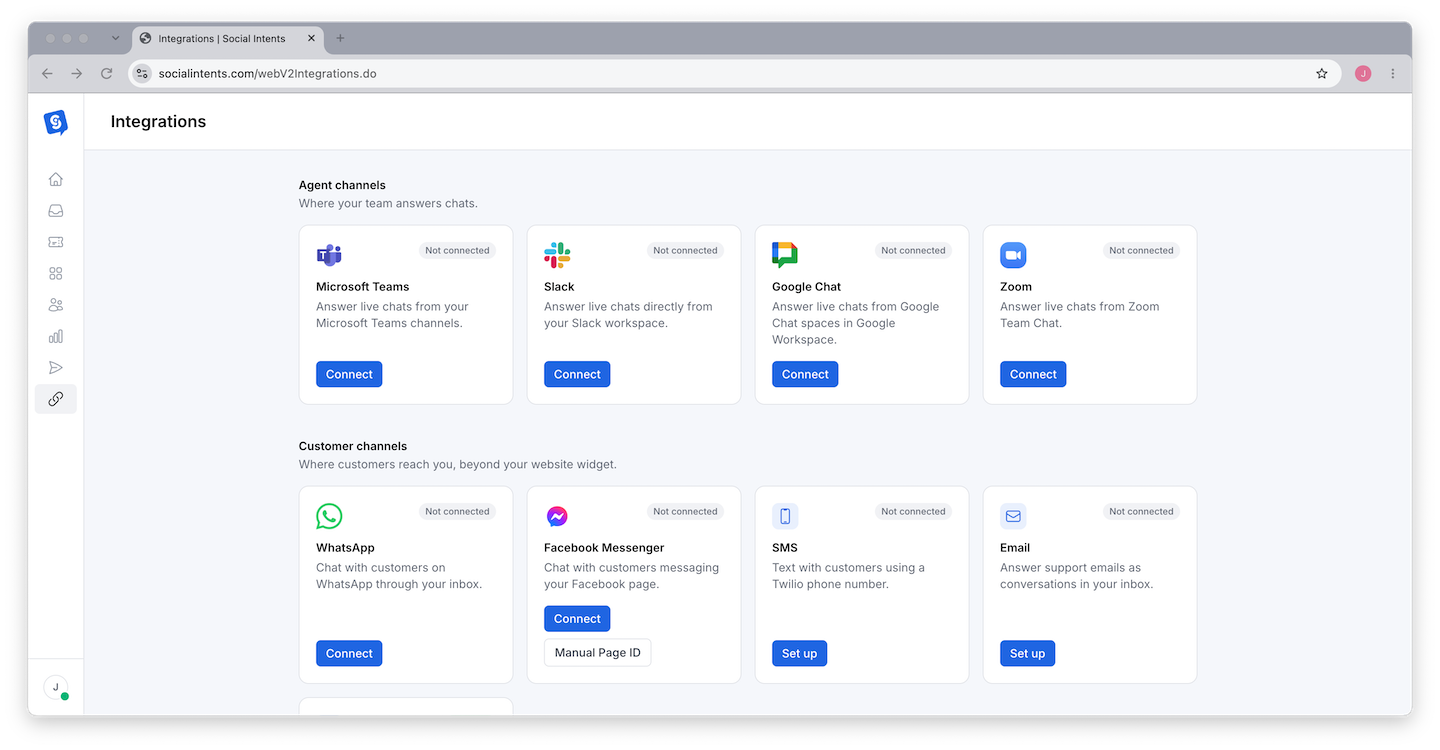
Click Integrations in the left sidebar. Agent platforms are listed at the top.
Authorize and Pick a Channel
Click your platform and follow the OAuth flow, then choose the channel or space where chats should post. Step-by-step guides: Microsoft Teams, Slack, Google Chat, Zoom, Webex.
Send a Test Chat
Use Preview from your widget workspace to start a chat as a visitor and confirm it lands in the channel. See Previewing and Testing Your Chat.
Frequently Asked Questions
Can I switch platforms later?
Yes, at any time and without touching the code on your website. Connect the new platform under Integrations and chats immediately route there; history stays in your account.
Can some agents use Slack while others use the web Inbox?
Yes. Every conversation is available in the Inbox regardless of the connected platform, so agents can answer from whichever surface they prefer.
Do platform integrations cost extra?
No. All agent platform integrations are included in every plan, including the trial.
What if my team uses none of these tools?
Use the web Inbox as your console - it supports assignment, canned responses, notes, tickets, and mobile-friendly notifications. See Using the Inbox.