
Escalation is the moment your AI chatbot hands a conversation to a person - and it is where chatbot experiences are won or lost. Done right, the bot absorbs routine questions and quietly brings in your team exactly when a human adds value. You configure all of it in the Handoff section of the AI Agent tab.
How Handoff Works
- The bot detects an escalation trigger - the visitor asks for a person, or the bot recognizes it cannot help.
- The conversation switches from AI to live mode and your team is notified in the Inbox and your connected platform channel (Teams, Slack, Google Chat, Zoom, or Webex).
- An agent replies and takes over; the full bot conversation is visible so the visitor never repeats themselves.
- If nobody is available, the offline flow captures the visitor's contact details instead. See What Happens When Everyone Is Offline.
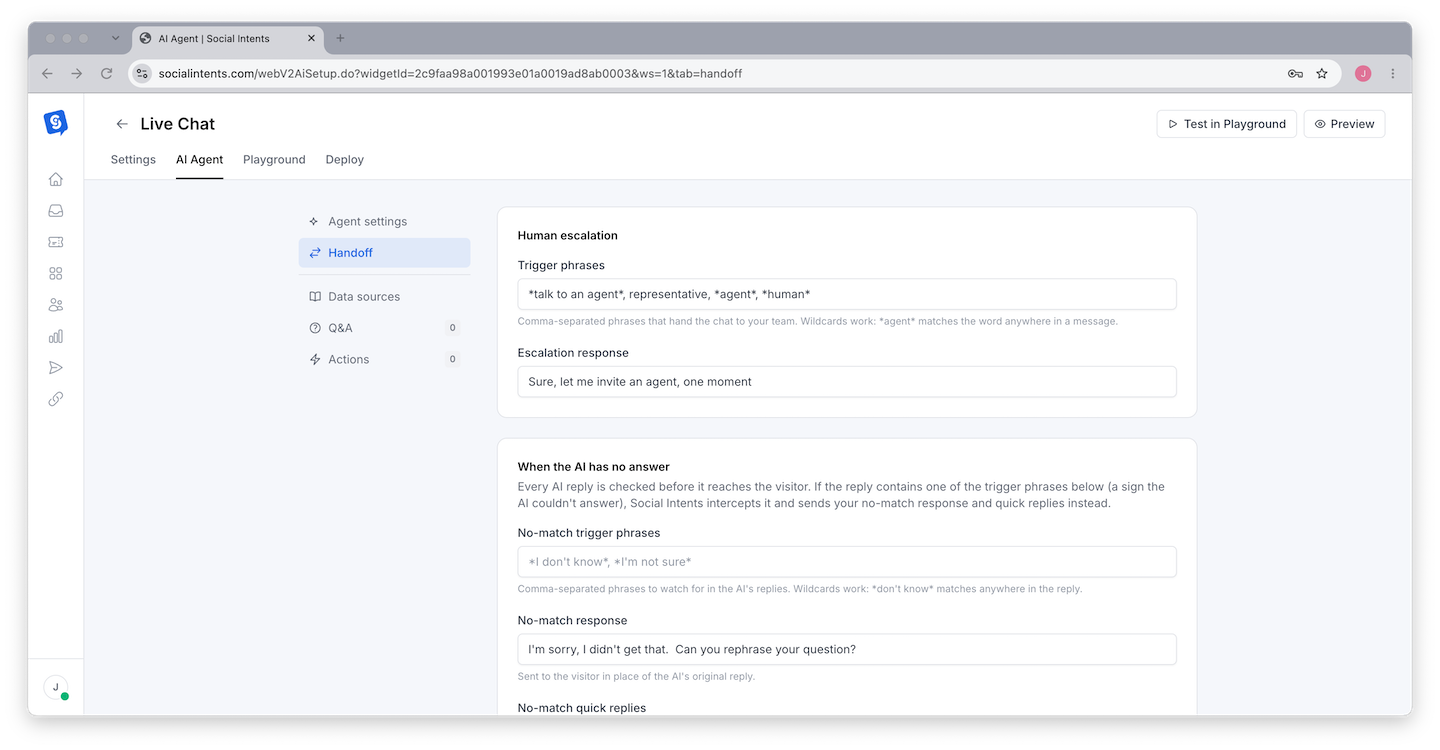
Configuring Handoff
Open Handoff Settings
Go to Chat Widgets → your widget → AI Agent → Handoff.
Choose When the Bot Escalates
Enable escalation when the visitor explicitly asks for a human, and instruct the bot (in your system instructions) to offer a handoff whenever it cannot answer from knowledge or the visitor sounds frustrated. Belt and suspenders: the Handoff setting catches explicit requests; the instructions catch judgment calls.
Set the Handoff Message
What the visitor sees while your team is pinged: "Let me connect you with the team - someone will be right with you." Keep it honest about wait expectations.
Route the Escalation
Escalations notify your connected platform channel and the Inbox. To send different topics to different teams - sales versus support, or by product line - use Escalation Routing with AI Actions.
Test the Whole Path
From the live widget (not just the Playground), type "I want to talk to a human." Confirm the mode switches, the notification lands in your channel, and an agent reply reaches the visitor. Test the offline path too by going offline first.
Tuning: Not Too Eager, Not Too Stubborn
- Bot escalates too easily - Visitors say "agent" out of habit and get handed off before the bot even tries. Fix: have the bot offer one useful answer first: "I can likely help with that - what's your question? Or I can connect you with the team now."
- Bot resists too long - Nothing angers visitors like a bot that won't give up. Fix: escalate immediately on the second request for a human, on billing disputes, and on anything emotional.
- Escalations at 3 a.m. - Pair handoff with your online schedule so after-hours escalations become lead captures instead of silent waits.
Measuring Escalation Health
In Analyze, watch your escalation rate - the share of bot conversations handed to humans. There is no universal "right" number, but the trend is diagnostic: a rising rate means the knowledge base is falling behind your visitors' questions ( close the gaps ); a rate near zero on high volume may mean the bot is stonewalling people who wanted help.
Frequently Asked Questions
Does the agent see what the bot said?
Yes - the entire conversation, bot messages included, is visible in the Inbox and the platform thread, so agents pick up with full context.
Can the bot escalate to a specific person?
Escalations go to channels/teams rather than individuals, and any available agent takes over. With escalation routing you can target specific channels per topic, which in practice targets specific teams.
What if the visitor asks for a human when nobody is online?
The offline experience triggers: the visitor sees your offline message and a form to leave contact details, which lands in your Inbox and email. Configure it under What Happens When Everyone Is Offline.
Can I disable the bot during business hours and use it only after hours?
Yes - combine the online schedule with your AI settings so humans take chats live and the bot covers nights and weekends.