
Never point real visitors at an untested chat. Social Intents gives you two purpose-built testing surfaces - Preview for the visitor experience and the Playground for AI behavior - plus a simple end-to-end checklist. Fifteen minutes of testing here prevents most launch-day surprises.
The Two Testing Tools
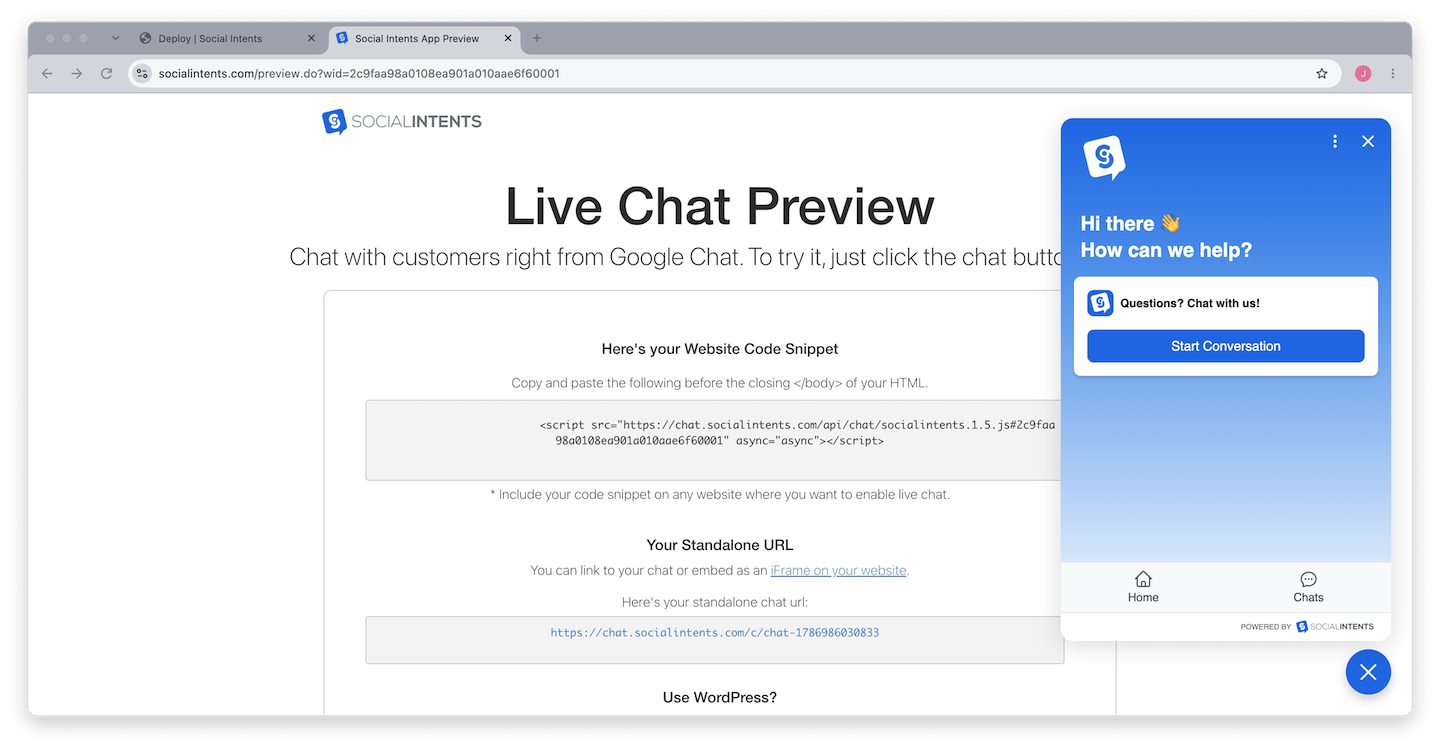
Preview: the visitor's view
Open any widget from Chat Widgets and click Preview in the top-right of the workspace. Preview renders your live widget exactly as visitors see it - branding, greeting, pre-chat form, schedule rules - without needing the code installed anywhere. Use it to check appearance changes instantly after saving.
Playground: the AI test bench
The Playground tab in the widget workspace is where you exercise your AI chatbot before visitors do. Send test questions, watch which knowledge sources the bot draws on, and edit the AI instructions and response style side by side with the conversation. Changes save to the live bot, so treat it as your tuning loop: ask, adjust, ask again.
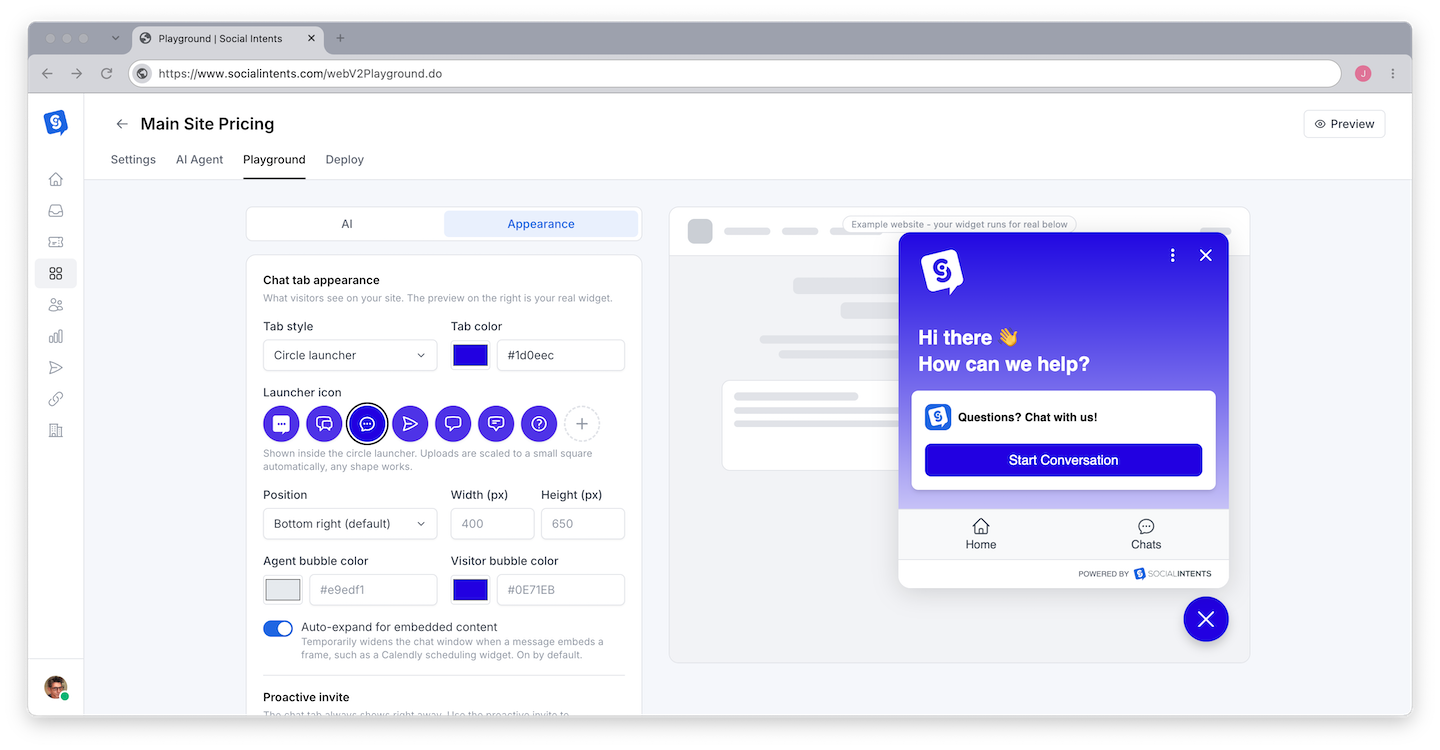
The Playground also shows a knowledge summary so you can confirm the bot is trained before testing. If answers are wrong or thin, fix the source material first - see Training Your Chatbot on Your Content.
End-to-End Test Checklist
Run through this once with the widget installed on your site (a staging page works fine):
- Widget renders - Open the page in a private/incognito window. The bubble appears, styled correctly, on desktop and mobile.
- Pre-chat form works - Required fields validate; submitted values appear in the conversation and the contact record.
- Chat reaches your team - Start a chat and confirm it posts to your Teams/Slack/Google Chat channel and appears in the Inbox under Live now.
- Two-way messaging - Reply as an agent; the visitor sees it within a second or two. Send a visitor reply back.
- AI answers correctly - If AI is enabled, ask your five most common customer questions. Verify tone, accuracy, and links.
- Escalation fires - Say "talk to a human" and confirm the handoff notifies your team. See Setting Up Escalation to Human Agents.
- Offline behavior - Set yourself offline (or test outside scheduled hours) and confirm the offline message or lead form shows. See What Happens When Everyone Is Offline.
- Notifications arrive - Confirm agents get notified on new chats where they work. See Notifications and Mobile Alerts.
- Transcript lands - Close the chat and check the transcript in Analyze → chat history.
Testing Without Affecting Metrics
Test chats count like normal conversations in reports. Keep launch metrics clean by testing before announcing the chat, or note the date range so you can mentally exclude it. Your own test chats are easy to spot in Analyze by visitor name or the pre-chat details you entered.
Frequently Asked Questions
Does Preview require the widget to be installed on my site?
No. Preview renders the widget on a hosted page, so you can perfect appearance and behavior before touching your website.
Do Playground conversations affect my usage or reports?
Playground test conversations are for tuning and do not spam your team channel the way real chats do. Full end-to-end tests through the actual widget do count as conversations.
Why does my test chat not reach Slack/Teams?
Usually the integration is connected to a different channel than you are watching, or no agent is online so the offline flow triggered instead. Check Integrations for the channel mapping and your online status in the sidebar. More help: Troubleshooting Missed Chats and Notifications.
Can teammates test with me?
Yes - add them under Settings → Team first so they can answer. Multi-agent testing verifies assignment and simultaneous chats. See Adding and Managing Team Members.