
Social Intents is live chat and AI chatbot software that lets your team answer website visitors from the tools they already use - Microsoft Teams, Slack, Google Chat, Zoom, or Webex - or straight from the Social Intents web Inbox. You can also front every conversation with an AI chatbot trained on your content, and hand off to a human only when it matters. This guide gives you the lay of the land so you know exactly where everything lives.
What You Can Do with Social Intents
- Answer live chat from your team tool - Chats route into Microsoft Teams channels, Slack channels, Google Chat spaces, or Zoom/Webex, so agents never have to learn another console. See Choosing Your Agent Integration.
- Deploy an AI chatbot in minutes - Train ChatGPT, Claude, or Gemini on your website and files, and let it answer around the clock. See Build Your First AI Chatbot.
- Escalate from AI to humans - The bot handles routine questions and hands the conversation to your team when a visitor asks for a person or the bot cannot help. See Setting Up Escalation to Human Agents.
- Meet customers on every channel - Website chat, WhatsApp Business, SMS, and email conversations all land in the same Inbox. See Setting Up WhatsApp Business.
- Capture and follow up on leads - Pre-chat forms, CRM actions, contact profiles, and transcript exports keep your pipeline full. See Capturing Leads to Your CRM.
A Tour of the Dashboard
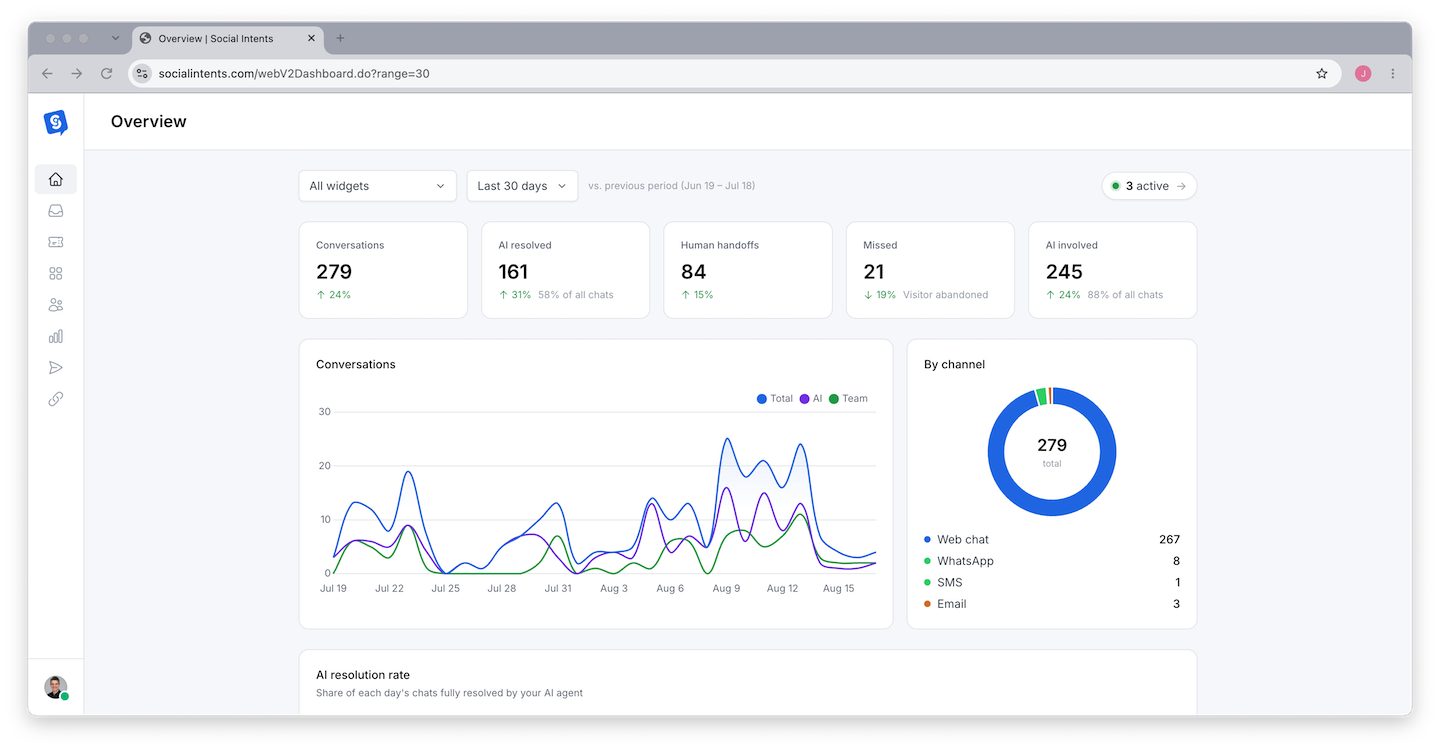
After you sign up at socialintents.com, you land in the web dashboard. The left sidebar is organized around seven areas:
| Area | What it does |
|---|---|
| Inbox | Every conversation across website chat, WhatsApp, SMS, and email. Views for All open, Live now, Awaiting reply, and Recently closed. Reply, assign, add notes, create tickets, and email transcripts from one place. |
| Chat Widgets | Create and configure chat widgets. Each widget has four tabs: Settings (appearance, pre-chat form, targeting, schedule), AI Agent (model, knowledge, handoff), Playground (test your bot and tune instructions), and Deploy (the install code). |
| Contacts | People and Companies captured from chats, forms, and channels - with conversation history and one-click email or SMS follow-up. |
| Tickets | Track issues that outlive a chat. Create tickets from any conversation and manage their status through resolution. |
| Analyze | Chat volume, agent performance, satisfaction scores, sentiment, conversation topics, and full chat history with export. |
| Outbound | Proactive chat campaigns plus WhatsApp and SMS outreach to contact lists. |
| Integrations | Connect your agent platform (Teams, Slack, Google Chat, Zoom, Webex) and customer channels (WhatsApp, SMS, Messenger, email), plus Zapier and webhooks. |
Account-level options - Profile, Team, Channels, Notifications, Account, and Billing - live under Settings, opened from your profile menu at the bottom of the sidebar.
What Makes Social Intents Different
Most live chat products make your team work inside yet another app. Social Intents takes the opposite approach:
- Your team tool is the console. Agents answer from Teams, Slack, or Google Chat - no new logins, no separate app to keep open, no missed messages because someone forgot to check another tab.
- Bring your own AI model. Choose ChatGPT, Claude, or Gemini, and optionally use your own API key. You are never locked into a proprietary bot.
- Flat, predictable pricing. Plans are priced by feature tier rather than per seat, so adding your whole support team does not multiply the bill. See Plans, Billing & Upgrades.
- All channels, one Inbox. Website chat, WhatsApp, SMS, and email conversations share the same Inbox, contact records, and reporting.
Your First 15 Minutes
Create Your Widget
Go to Chat Widgets and create your first widget. Pick a name, colors, and greeting. Full walkthrough: Set Up Your First Chat Widget.
Connect Your Team Platform
Decide where agents will answer: Microsoft Teams, Slack, Google Chat, Zoom, Webex, or the web Inbox alone. Compare the options in Choosing Your Agent Integration.
Install the Chat Code
Open your widget's Deploy tab and copy the snippet into your site - or use a platform plugin for WordPress, Shopify, and others.
Test Before You Announce
Use the Preview button and the Playground to send test chats end to end. See Previewing and Testing Your Chat.
Then work through the Getting Started Checklist - it mirrors the checklist inside the product and covers the settings teams most often forget.
Frequently Asked Questions
Do I need a credit card to start?
No. The free trial includes every feature so you can evaluate the full product. You choose a plan only when the trial ends.
Can I use Social Intents without Teams or Slack?
Yes. The web Inbox is a complete agent console on its own. Platform integrations are optional - many teams start web-only and connect Teams or Slack later.
Does the AI chatbot require the live chat features?
No. You can run the AI chatbot standalone, use live chat standalone, or combine them so the bot answers first and escalates to humans when needed.
How many agents can I add?
Agent limits depend on your plan tier, not per-seat pricing. See Chat Limits, Agent Limits & Usage for current limits.