
An AI chatbot in Social Intents answers visitor questions using ChatGPT, Claude, or Gemini, trained on your own website and documents. It works alongside your live chat: the bot answers instantly, around the clock, and hands off to your team when a human is needed. This guide takes you from zero to a working, trained, tested chatbot. For a product overview, see ChatGPT chatbot for your website.
How the Pieces Fit Together
| Where | What you do there |
|---|---|
| AI Agent tab | Turn the bot on, pick the AI provider and model, set the bot name and disclaimer, and configure human handoff. |
| Knowledge | Train the bot: add website pages, sitemaps, and files it should learn from, and manage Q&A pairs. |
| Playground | Write the AI instructions, tune the response style, and test conversations before visitors see them. |
All three are reached from the widget workspace: Chat Widgets → select your widget.
Step 1: Enable the AI Agent
Open the AI Agent Tab
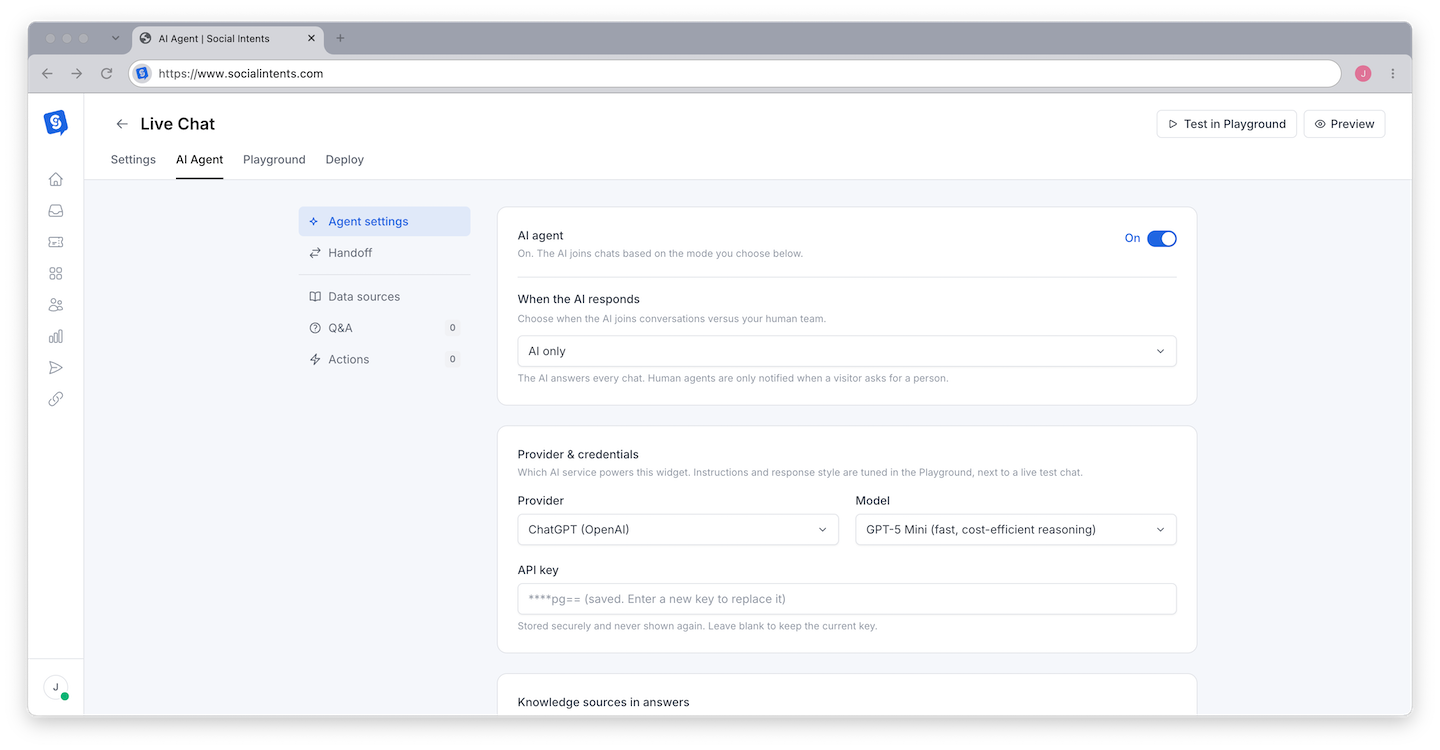
Go to Chat Widgets, select your widget, and click the AI Agent tab.
Choose Provider and Model
Pick your AI engine - ChatGPT, Claude, or Gemini - and a model from the dropdown. Popular ChatGPT models work with no API key; some premium models require your own key from the provider, which you paste in the same card. Not sure which engine? See Choosing Your AI Engine.
Set the Bot Identity
Give the bot a name visitors will see and, optionally, an AI disclaimer message that tells visitors they are talking to an AI. Many teams are required to disclose this - see Visitor Privacy and Consent.
Step 2: Train It on Your Content
Open Knowledge
From the AI Agent tab, open Knowledge. This is the bot's library - it can only answer from what you put here.
Add Sources
Use the add tabs: Add Website crawls your site from a starting URL, Add Sitemap imports every URL in an XML sitemap, Add Page grabs a single URL, and Upload File accepts documents (PDF, Word, text) or a CSV of URLs to import in bulk.
Train
Click Train All and wait for sources to finish processing. Retrain any single source with its refresh icon after content changes.
Full details, including what trains well and what does not: Training Your Chatbot on Your Content.
Step 3: Instruct and Tune in the Playground
Open the Playground Tab
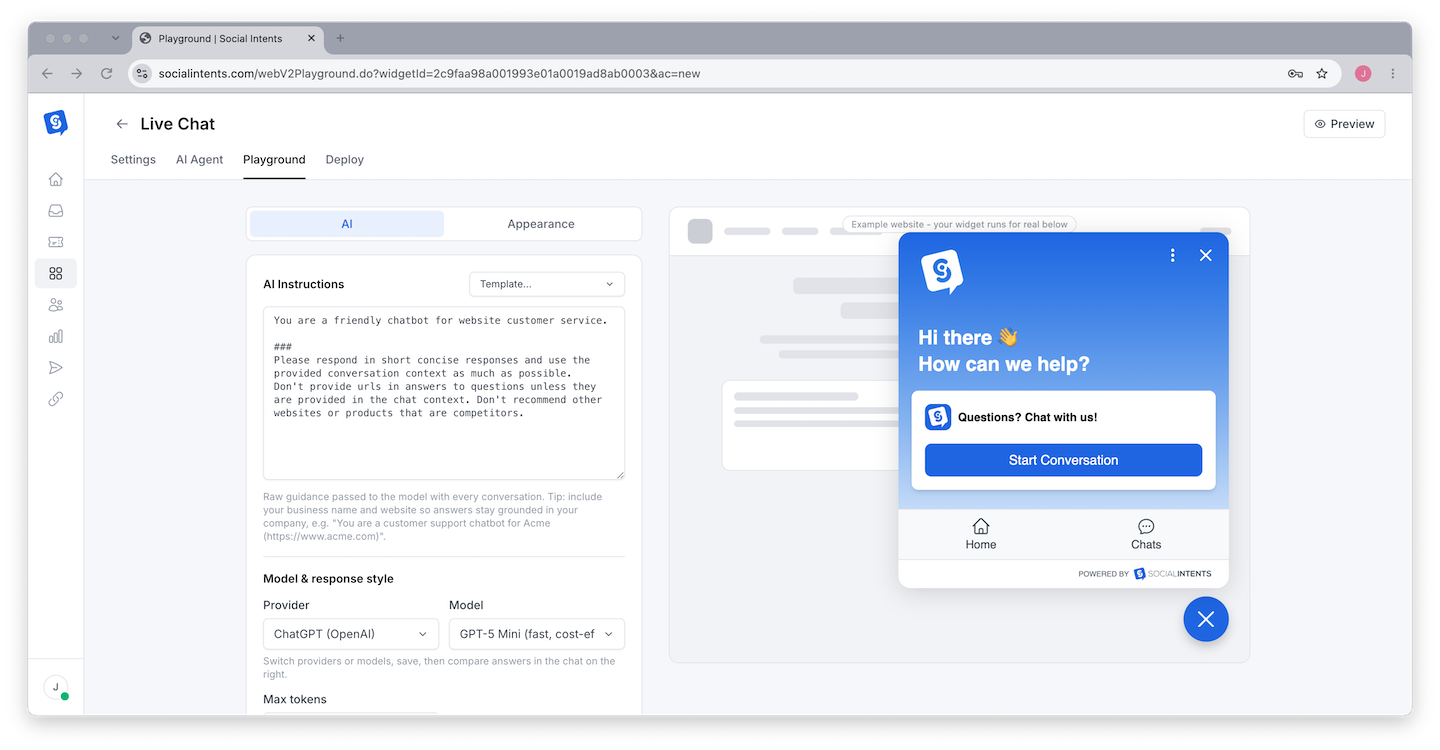
The Playground shows a test conversation next to your AI instructions and response style controls, with a summary of the knowledge the bot is trained on.
Write the Instructions
Tell the bot who it is, what it should and should not do, and how to respond. Start simple:
"You are the support assistant for Acme Software. Answer using only the provided knowledge. Be concise and friendly. If you do not know the answer, or the visitor asks for a human, offer to connect them with the team."
A full guide with templates: Writing Effective System Instructions.
Test and Iterate
Ask the questions your customers actually ask - pricing, refunds, setup, edge cases. Adjust instructions or add knowledge, then ask again. Save applies your changes to the live bot.
Step 4: Configure Human Handoff
In the AI Agent tab, open Handoff. Configure when the bot escalates - when the visitor asks for a person, when the bot cannot answer - and where the escalation goes: your Inbox and connected platform channel. Test the phrase "talk to a human" end to end. Complete guide: Setting Up Escalation to Human Agents.
Step 5: Go Live and Watch Week One
- Verify the widget is installed (install guide) and the bot responds on your site.
- Read the first week of transcripts in Analyze - every wrong or missing answer is a training gap you can close in minutes.
- Use the Improve tab in Knowledge to turn visitor thumbs-down feedback into corrected Q&A. See Improving Response Quality.
Frequently Asked Questions
Do I need my own OpenAI or Anthropic API key?
Not for the commonly used models - they run on built-in keys. Premium models can require your own provider API key, entered in the AI Agent tab. The model dropdown indicates which.
How long does training take?
Single pages and files finish in seconds to minutes. Large site crawls depend on page count - a few hundred pages typically completes within minutes.
Can the bot answer questions outside my content?
By default it should decline and offer a handoff - that behavior comes from your instructions. Explicitly telling it to answer only from provided knowledge prevents invented answers.
Can I run the bot only outside business hours?
Yes - combine your online schedule with handoff settings so humans take chats during the day and the bot covers nights and weekends. See Online Schedule vs Manual Status.