
The Inbox is the web console for every conversation in your account - website chats, WhatsApp, SMS, and email threads all in one list. Even if your agents answer from Microsoft Teams or Slack, the Inbox is where you see history, assign conversations, add notes, create tickets, and follow up. This guide covers the layout, the views, and the day-to-day workflow.
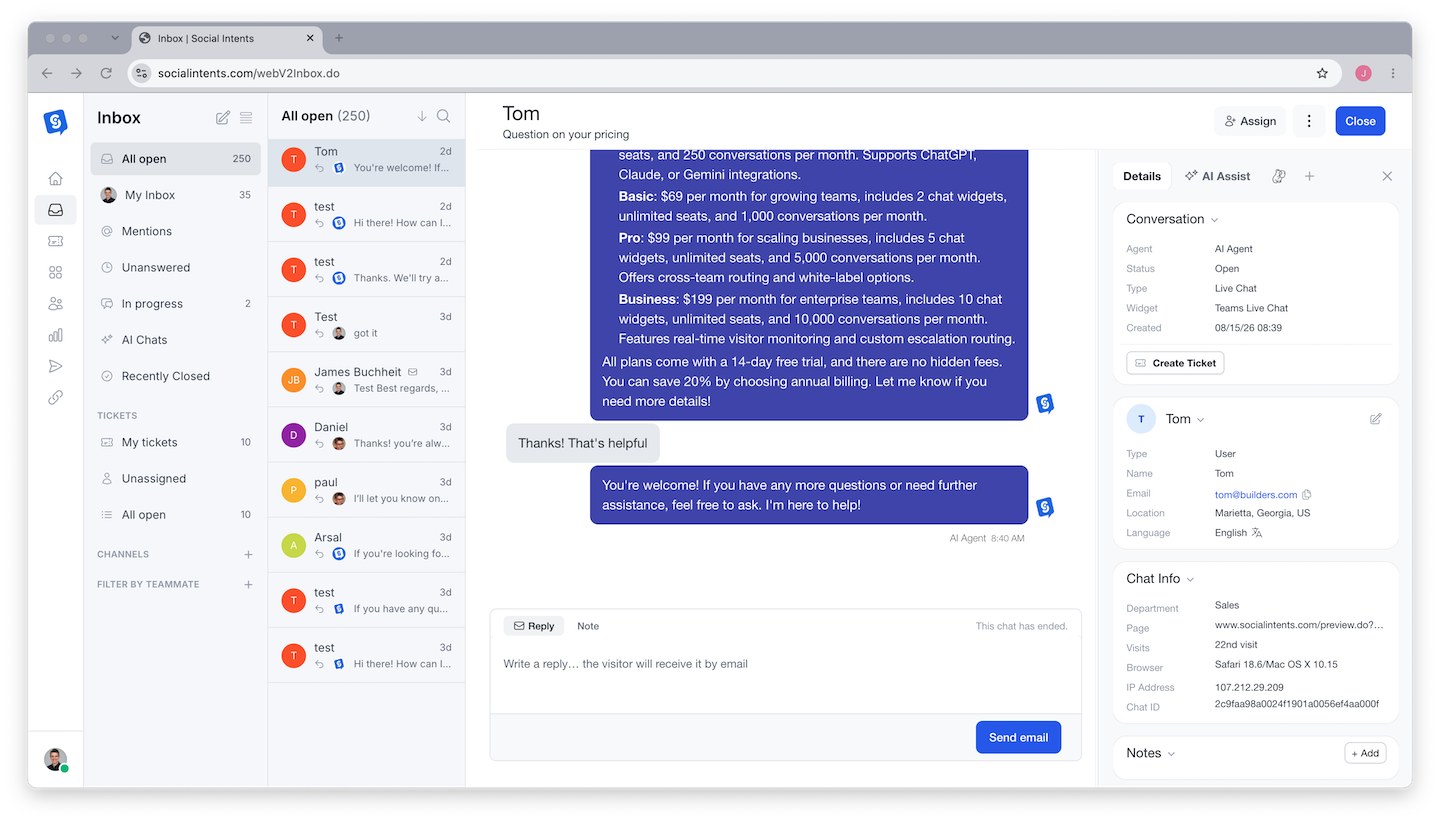
Layout
- Views rail (left) - Switch between conversation views and filter by team or channel.
- Conversation list (middle) - Conversations for the current view, newest first (toggle to oldest), with channel icons and status dots.
- Conversation detail (right) - The transcript, reply composer, and the visitor's contact card with previous conversations.
The Views
| View | What it shows |
|---|---|
| All open | Every conversation that is not closed - your default working view. |
| Live now | Conversations with a visitor actively connected right now. |
| Awaiting | Conversations where the last message is from the visitor and nobody has replied - your action queue. The sidebar badge counts these. |
| Recently closed | Conversations closed in the recent past, for quick reopening and follow-up. |
An AI chats filter isolates conversations handled by the chatbot - useful for the weekly quality review.
Working a Conversation
- Reply - Type in the composer; the visitor sees it instantly in the widget (or as a WhatsApp/SMS/email message on those channels). Use canned responses for common answers.
- Notes - Internal comments visible only to your team, ideal for context before reassigning.
- Assign - Hand the conversation to a specific teammate.
- Create ticket - Turn the conversation into a tracked ticket when the issue outlives the chat.
- Email transcript - Send the transcript to any address.
- Contact card - The visitor's details, custom fields from the pre-chat form, and their previous conversations - so you never ask "have we talked before?"
Starting Outbound Conversations
The compose button in the views rail starts new outbound threads: a WhatsApp template message, an SMS, an email, or a ticket. Channel availability depends on what you have connected under Integrations - see WhatsApp setup and the email channel.
Inbox vs Platform Apps
If your team answers from Teams, Slack, or Google Chat, the Inbox mirrors everything - same conversations, same replies, kept in sync. Typical division of labor: agents reply wherever they live (platform channel or Inbox, both work), while managers use the Inbox for assignment, tickets, notes, and history. Mobile-friendly notifications are covered in Notifications and Mobile Alerts.
Frequently Asked Questions
Why is a conversation in Awaiting but not Live now?
The visitor sent the last message but has since left the page. Reply anyway - they are notified by email if they left contact details, and messaging-channel visitors (WhatsApp/SMS) receive replies natively.
Can agents see every conversation?
Admins and Managers see everything. Agents can be scoped to specific widgets or departments under Settings → Team - see Adding and Managing Team Members.
How long do conversations stay in the Inbox?
History is retained per your plan and data settings - see Data Retention and Deletion. Transcripts are also exportable from Analyze.